


THE WRITER’S GUIDE · 01 / 14
Starting a New Script
A blank page, a place, a person. That is enough to begin.
In this chapter
Meet your writing space
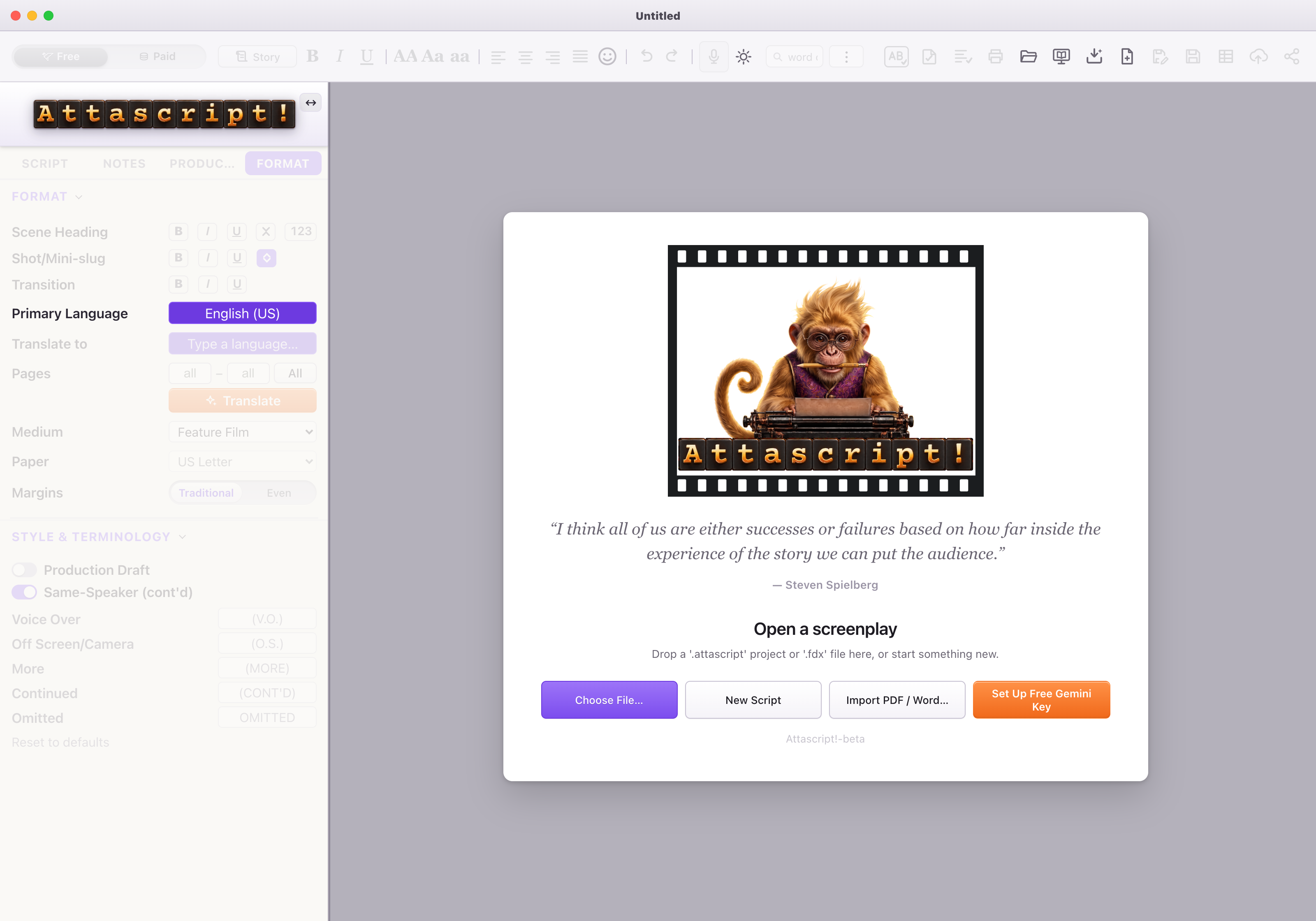
Welcome to Attascript!. You can start writing, save projects and use local spelling without setting up AI. Gemini is there when you choose to ask for help.
The Welcome screen gives you four useful doors: Choose File…, New Script, Import PDF / Word… and Set Up Free Gemini Key.
Create your first page
- Choose New Script. You can also use File → New Script, ⌘ + N on Mac or Ctrl + N on Windows. An existing script stays in its own window.
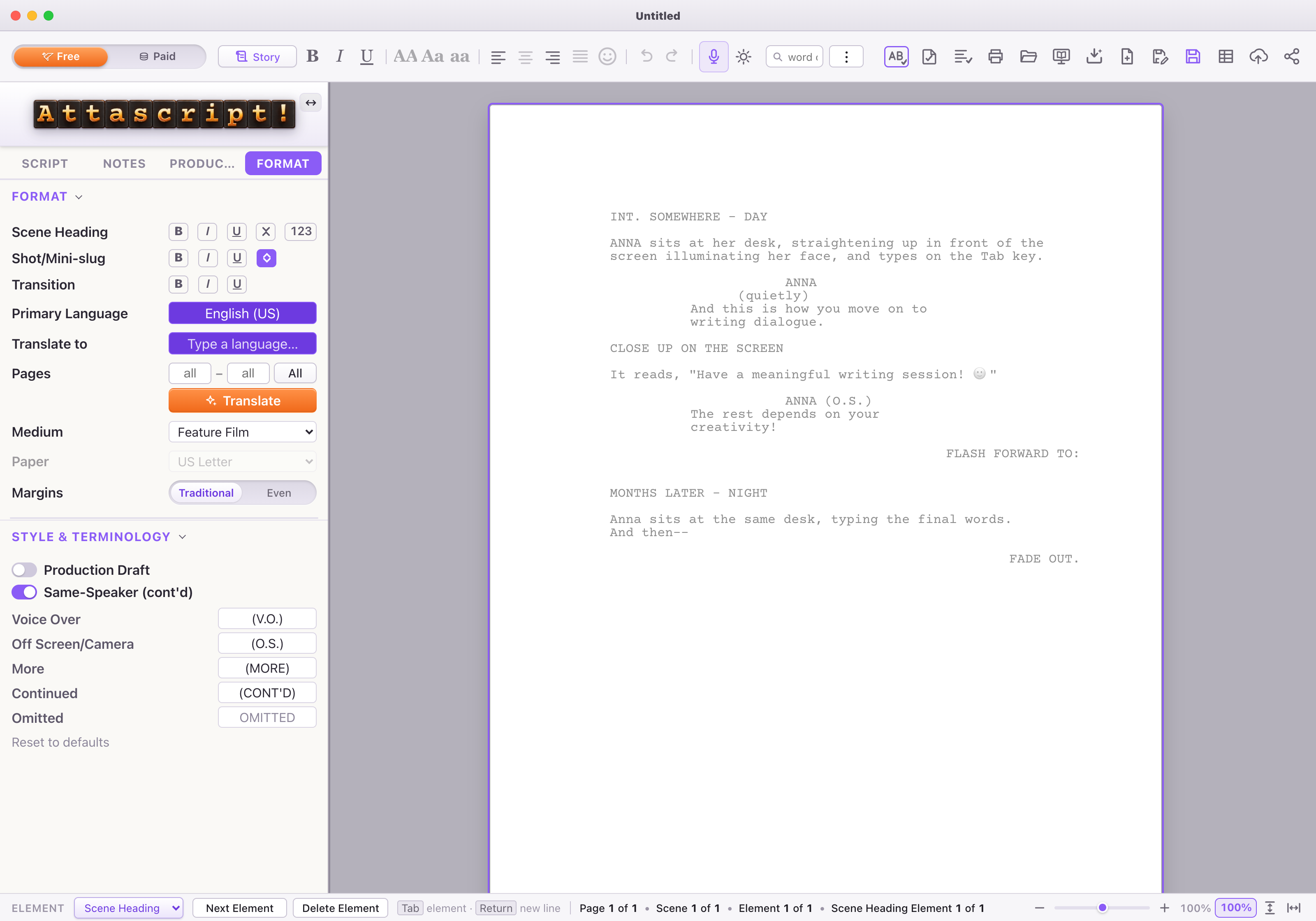
- Set your writing profile. In the Format tab, choose Primary Language. Pick the regional profile you intend to write in, such as English (US) or English (UK). A new script inherits the current profile.
- Choose your medium. Feature Film is a comfortable starting point. Television and multicamera scripts have their own act and layout conventions. Let the profile choose the paper and margins unless you need a different format.
- Click the first Scene Heading and start typing. The pale example is a guide, not text you have to delete. Your first keystroke starts your own screenplay.
- Save early. Use ⌘/Ctrl + S, choose a folder you can find again, and give the project a name. Use Attascript! for your working project.
Try it: The Last Light
We will follow Maya and Leo, two siblings at an observatory, throughout this guide. Type INT. OBSERVATORY - NIGHT as the Scene Heading. The app handles the heading’s appearance.
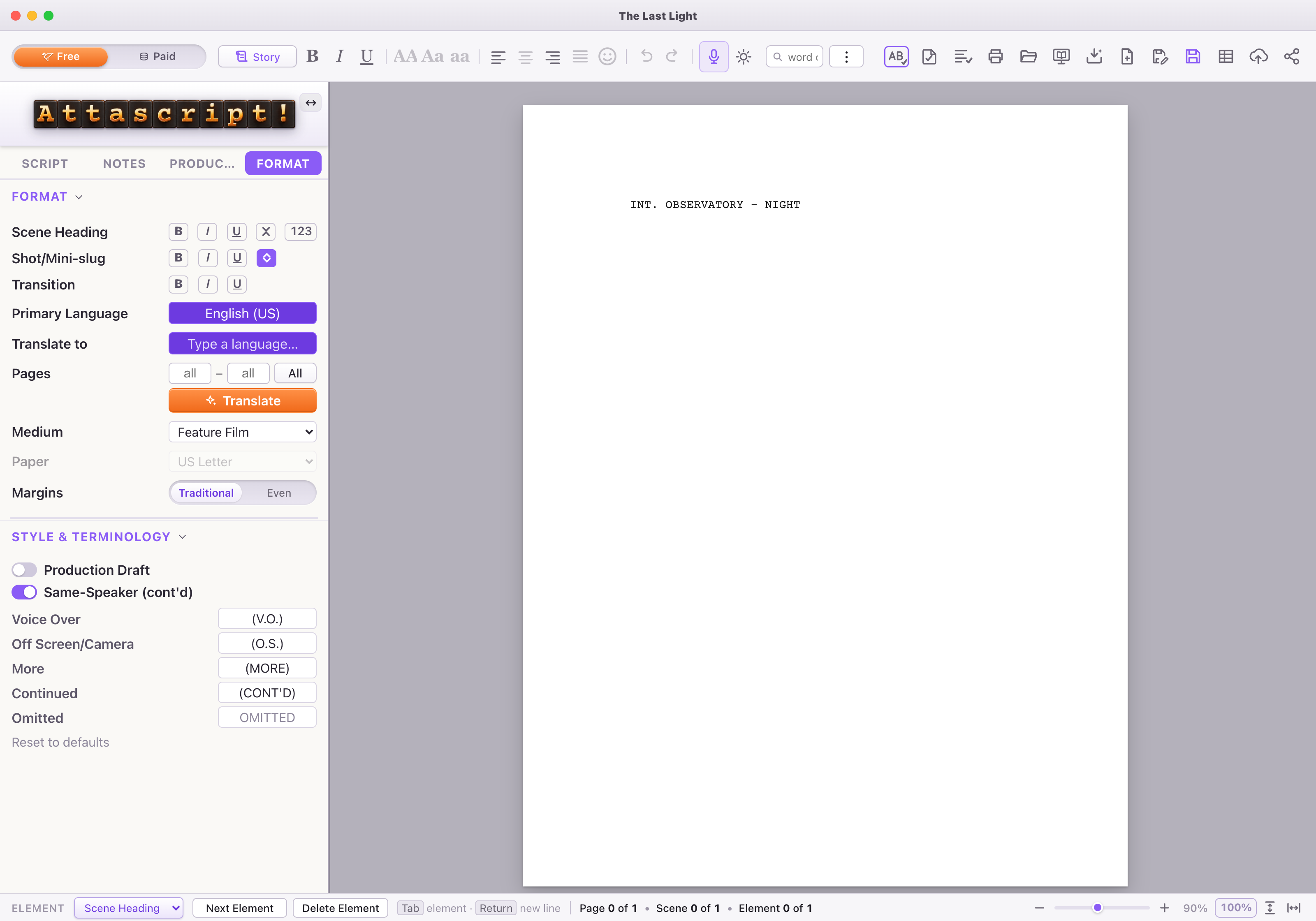
Next, press Tab. You are ready to describe what the audience sees. The next chapter walks through the rest of this first scene.
Download the sample screenplay (.fdx) → You can follow along with it or use your own idea.