


THE WRITER’S GUIDE · 04 / 14
Importing a Script
Bring a PDF or Word draft onto editable screenplay pages.
In this chapter
Start an import
A PDF describes a printed page; it may not describe which lines are headings or dialogue. Import helps turn that material back into screenplay elements. It is a different job from opening an Attascript! or FDX project.
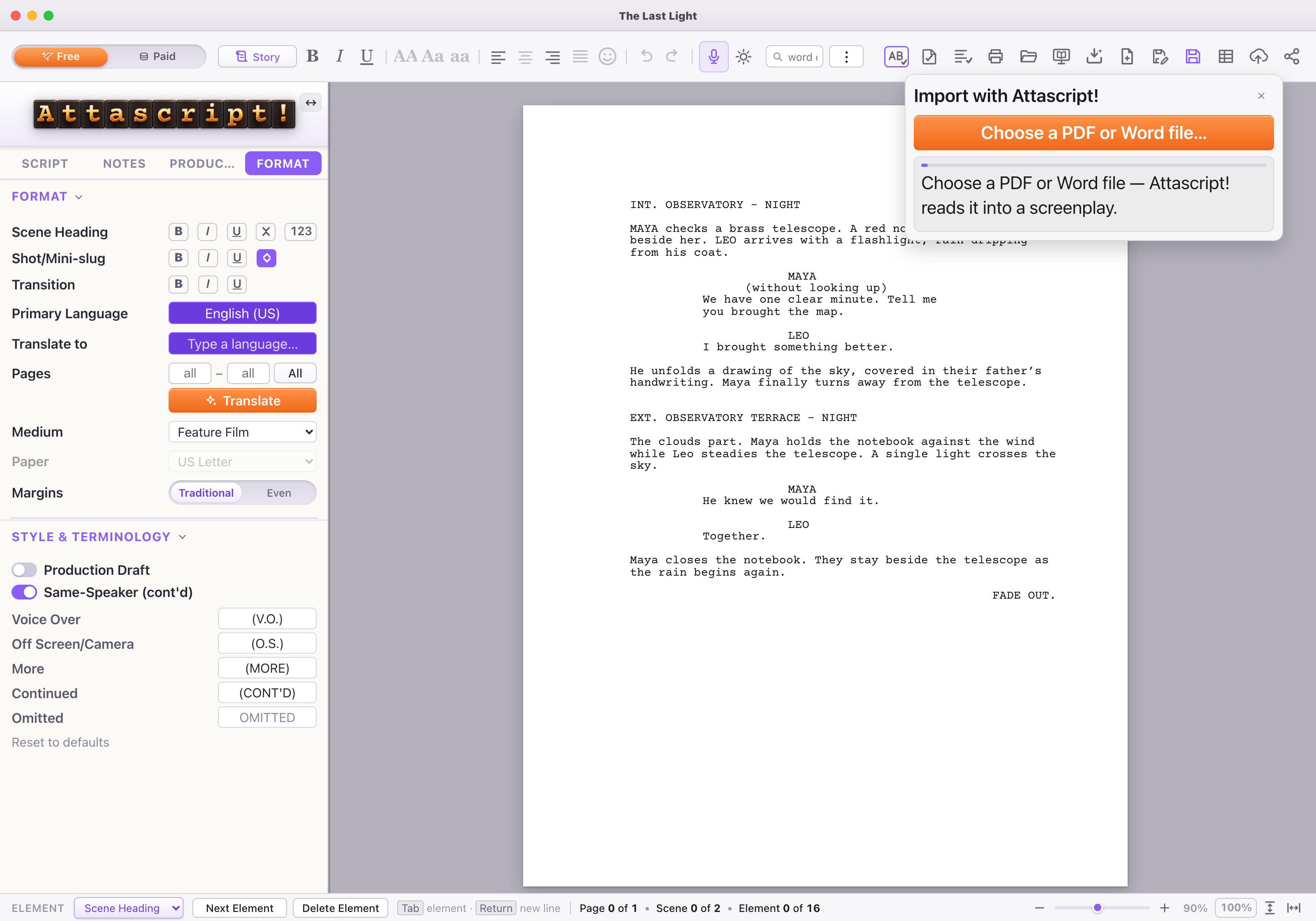
- Save your current work. From Welcome choose Import PDF / Word…, or click the toolbar’s down-arrow into a tray icon.
- In the import tray, choose your PDF or Word file. If asked, set up the Gemini key for the selected Free or Paid tier.
- Let the progress messages guide you. A long draft can require more than one pass. Read any warnings rather than assuming every page was interpreted perfectly.
- Inspect the result: first and last scenes, character cues, parentheticals, dialogue, page headers and any scanned passages.
- Correct element types with the bottom Element selector, then save the result as a new Attascript! project.
A quick import review
| Look for | What a good result looks like |
|---|---|
| Scene headings | Location and time are attached to a Scene Heading, not split into several Action lines. |
| Character names | Each speaker has a Character element directly before their speech. |
| Page furniture | Repeated page numbers and headers are not mistaken for dialogue. |
| Non-Latin writing | Accents, script direction and characters survive the import. |
| A scanned PDF | The image is readable enough for extraction. If text is missing, try a cleaner export or original Word/FDX file. |
Importing is not adapting
Use Import when you already have a script and want editable pages. Use the Adapt button when you want to develop a book, story or existing script into a new form. The next development chapter explains what each adaptation option produces.